User Artifacts
Collect Bash history of each user /home/username/.bash_history
history | less - View command history.
Root user Bash History /root/.bash_history
Look for unexpected accounts, especially UID 0 accounts (or user accounts in system)
cat /etc/passwd
/etc/shadow: Look for any unexpected modification which may indicate attackers have changed a legitimate password.
/etc/sudoers: shows users with the ability to run commands with elevated privileges.
grep :0: /etc/passwd - Find root accounts.
/etc/group: check for changes to group memberships. GID27 is traditionally the SUDOERS group so special attention needs to paid here.
Don't forget to change the root password, If any user has UID 0 besides root, they shouldn't. Bad idea. To check: grep 'x:0:' /etc/passwd
Again, you shouldn't do this but to check if the user is a member of the root group: grep root /etc/group
To see if anyone can execute commands as root, check sudoers: cat /etc/sudoers
last -awx List of last logged in users
passwd -S [User_Name] - Check password status for a user.
who - Show who is logged on.
w - Show who is logged on and what they are doing.
lastlog - Show the most recent logins.
current logged in users: logname : List/print the current user logged in on an endpoint:
SSH Related Investigation
First
/home/[user]/.ssh/authorized_keys This file exists as a result of a computer operating as an SSH server. It contains the list of entries having SSH related information of computers that can connect to it. An entry is added to this file when a client shares its public key with the server. A single entry is of the following format:
[key type] [base-64 encoded public key] [comment]

Second
/home/[user]/.ssh/id_<> It was mentioned that a computer can also act as the SSH client to connect to other systems. The public-private key pair used to connect to other systems can also be found in this hidden folder.
Third
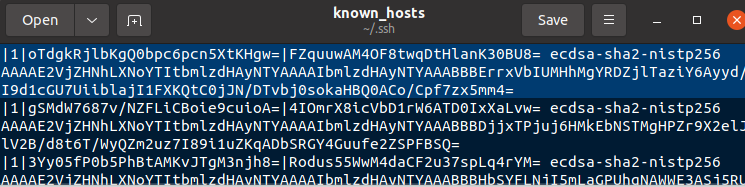
/home/[user]/.ssh/known_hosts
Whenever you attempt to login to a computer via SSH, key exchange happens with the provided public key. Then a user can login to the machine.
The known_hosts file contains the list of machines to which this computer has established an SSH session with, by exchanging keys. It does not imply that a user has logged into the machine. It only implies a successful key exchange. Logs within the /var/log/auth.log file on the server can confirm if the client had connected to it.
The following screenshot shows the public keys of hosts spark has connected to via SSH.
Fourth
/home/[user]/.ssh/config This file is used by the SSH client machine. It defines custom parameters of an SSH host to connect to. It defines information like the hostname, port number and public key file.
Fifth
/var/log/auth.log
Within this log file, you can find entries about key exchange and SSH login attempts. The following screenshot shows a successful login to this computer via SSH from IP 192.168.1.100.

On a client machine, you can also find evidence of SSH connections in shell history.
SSH Wrapup
To investigate suspicious SSH activity on a Linux system,
On the SSH server
Look within the /home/[user]/.ssh/authorized_keys file
Look within /var/log/auth.log for evidence of SSH key exchange and login attempts 2.On the SSH client
Look within the /home/[user]/.ssh/known_hosts file to find the list of computers the client has exchanged public keys with
Look within /home/[user]/.ssh/config for any specific SSH server configuration to connect to
Look within /home/[user]/.ssh/id<> for public-private key pairs
Look within /var/log/auth.log for evidence of SSH key exchange and login attempts
Look within the shell history for evidence of SSH activity
Last updated